
Early access · Release date: February 5, 2026
UpdatedMENACE Steam Deck Guide: Settings, Controls, and FPS
Explore MENACE Steam Deck settings, controls, and performance, with tips for small text, combat frame drops, and recent Early Access performance updates.
Jump to
Can You Play MENACE on Steam Deck?
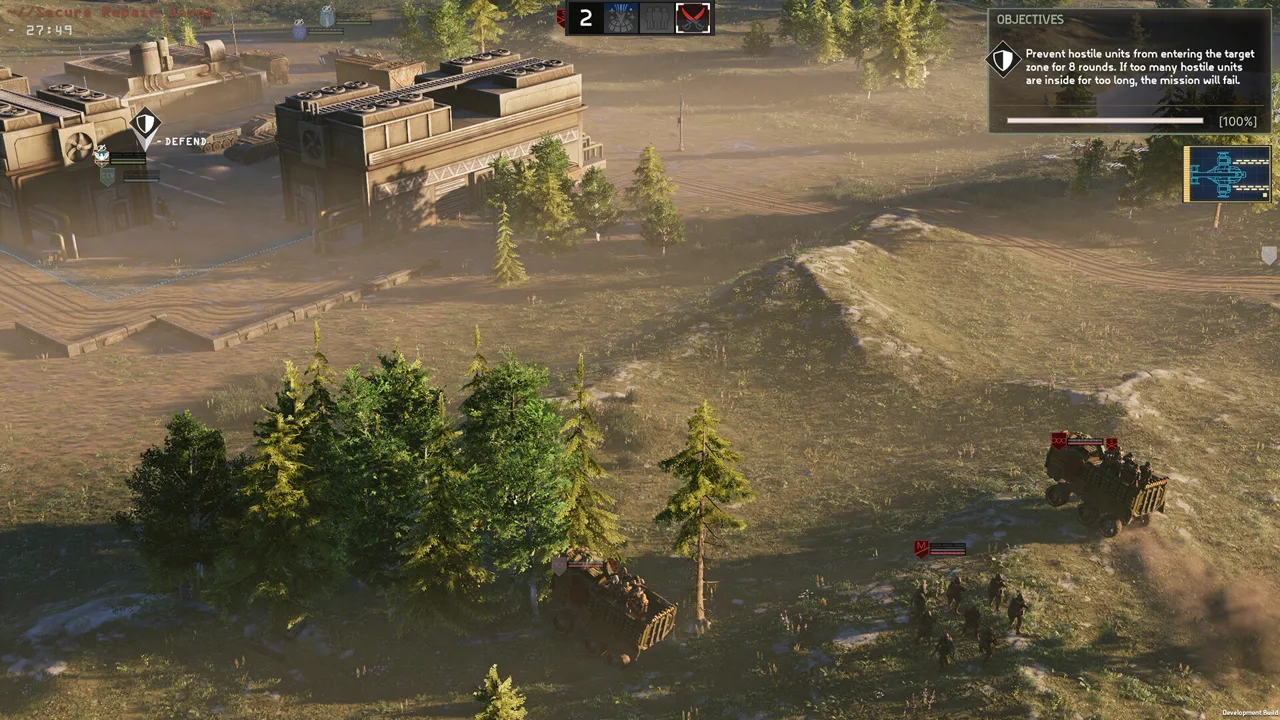
MENACE Steam Deck play puts the Wayback campaign in your hands, but expect compromises in image quality and text readability. The February 2026 Early Access build carried Valve’s Playable rating and ran around 50 FPS with adjusted settings, although combat effects caused frequent dips. This MENACE Steam Deck guide covers that settings baseline, mouse-style controls, and the performance changes introduced in version 0.7.17.
MENACE puts you in command of a Republic Marine Corps strike force operating across hostile worlds. Between battles, you manage equipment, squad leaders, vehicles, and your strike cruiser. On the battlefield, suppression, positioning, and limited ammunition demand careful decisions.
That combination gives handheld players plenty to consider beyond whether the game launches. You need to read weapon statistics, inspect terrain, and navigate equipment menus comfortably.
| Compatibility detail | February 2026 Early Access status |
|---|---|
| Valve compatibility rating | Playable |
| Control setup used | Keyboard and Mouse (WASD) template |
| Handheld input | Trackpad controls |
| Main interface difficulty | Small text and lack of interface scaling |
| Graphics compromise | Reduced image quality with FSR 3 Performance |
Playable is different from Verified. For MENACE, the practical compromises included mouse-oriented navigation, demanding graphics, and difficult-to-read interface text.
Before buying specifically for handheld play, check the current compatibility details on the MENACE Steam page. Keep the February performance baseline separate from later patches when deciding what to expect.
MENACE Steam Deck Settings to Start With
Use the following MENACE Steam Deck settings as a starting point. This configuration comes from the February Early Access build and balances the medium preset with aggressive upscaling.
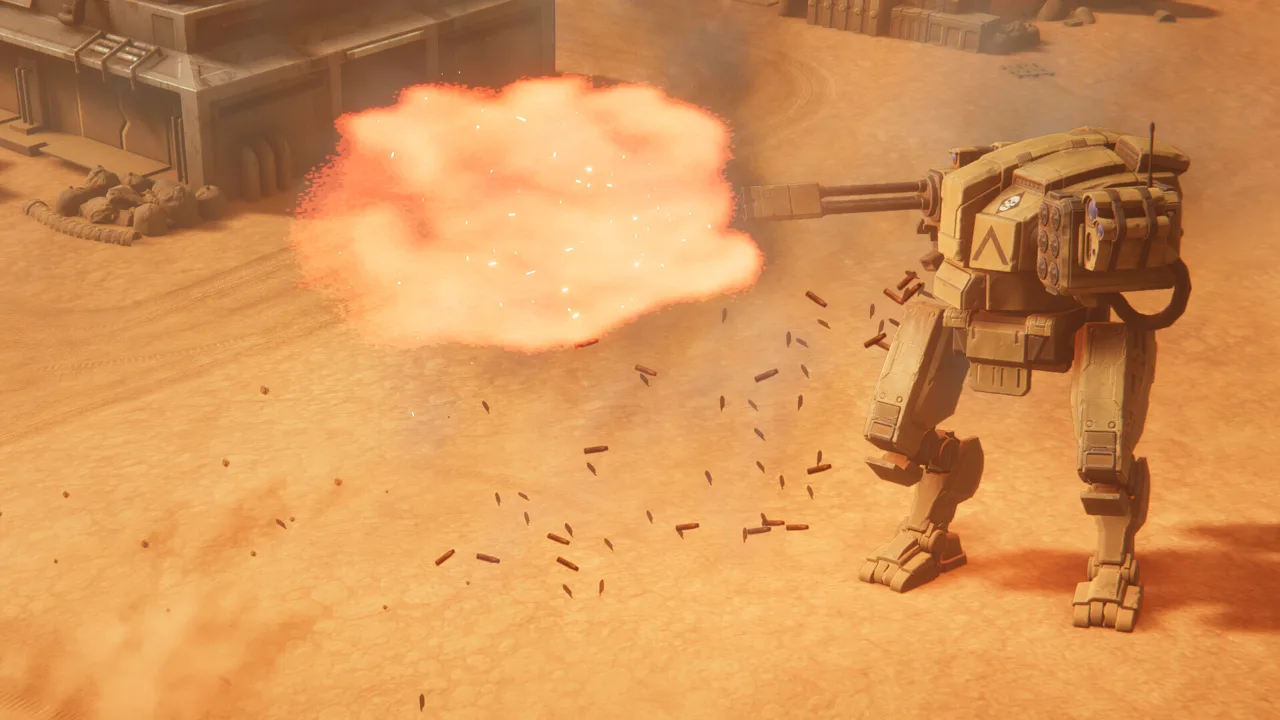 Image: Steam / Overhype Studios
| Setting | Starting value |
|---|---|
| Graphics preset | Medium |
| Resolution | Native Steam Deck resolution |
| Upscaling | FSR 3 |
| Upscaling mode | Performance |
| Display refresh rate | 50 Hz |
| TDP limit | Uncapped |
The important combination is Medium plus FSR 3 Performance. Lower graphics settings produced a substantial visual downgrade, while higher settings reduced frame rates. Medium preserved more of the battlefield’s presentation while the upscaler reduced rendering demands.
Expect an image-quality tradeoff. FSR 3 Performance did not produce a particularly clean picture on the Deck’s 800p display. That matters in a game where terrain, cover, and unit positions carry tactical information.
Start with the complete configuration before changing individual options. Then compare the same battlefield view after each adjustment. Change one setting at a time so you can tell whether the improvement is worth the loss in clarity.
Keep these priorities in mind:
- Inspect terrain and unit visibility before accepting a softer image.
- Check equipment screens as well as the battlefield.
- Judge performance during gunfire and destruction, rather than only while the camera is still.
- Leave the TDP uncapped when reproducing this particular baseline.
The 50 Hz setting describes the display refresh rate used with this configuration. It does not mean every combat sequence stays at 50 FPS.
Treat these MENACE Steam Deck settings as a practical baseline for comparison. Version 0.7.17 changed a costly lighting feature, so reassess the configuration after updating before making further compromises.
Frame Rates, Power Draw, and the Performance Hotfix
The February build generally approached 50 FPS with the settings above, but action-heavy moments interrupted that smoothness. Gunfire and terrain destruction caused frequent frame-rate drops.
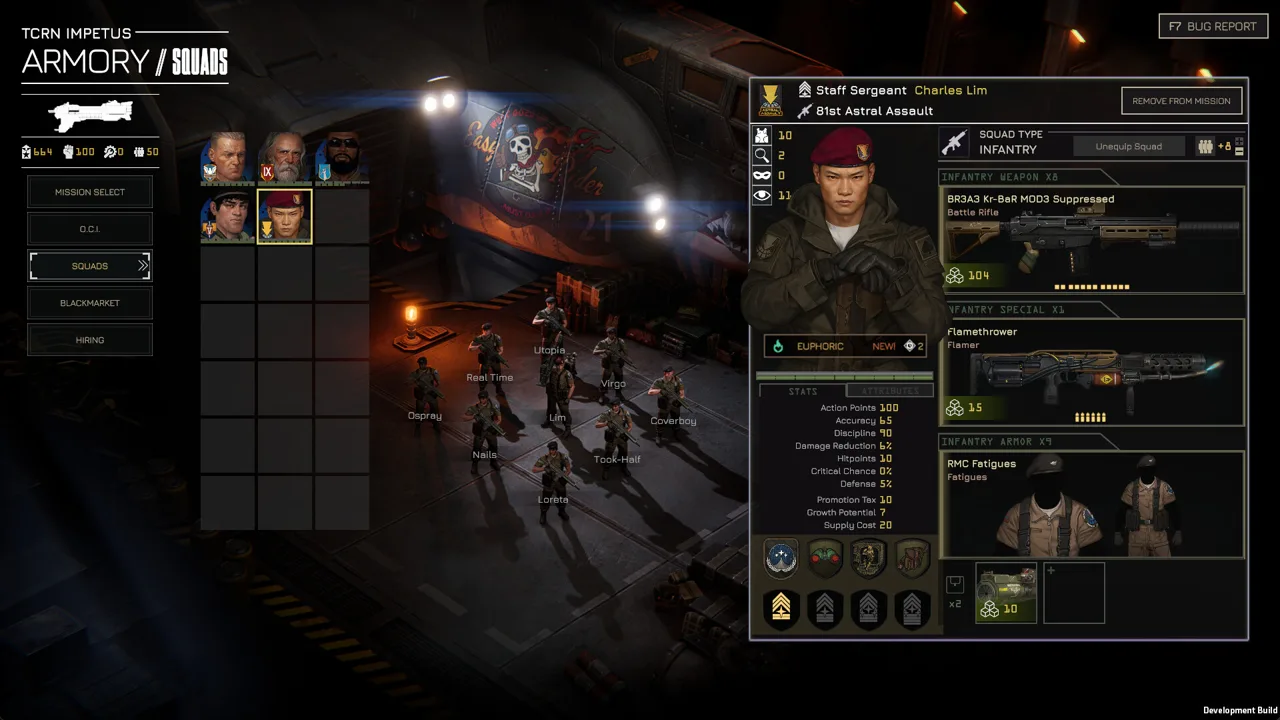 Image: Steam / Overhype Studios
MENACE’s turn-based structure gives you time to make decisions, but visual stutters still affect the flow of a battle. A quiet battlefield view tells you less about performance than an exchange involving sustained fire and collapsing scenery.
| Performance detail | February Early Access behavior |
|---|---|
| Frame rate with the listed configuration | Around 50 FPS in most situations |
| Frequent slowdown triggers | Gunfire and terrain destruction |
| Image quality | Noticeably compromised on the 800p screen |
| Steam Deck OLED power draw | Approximately 12 watts on average with the described 50 Hz setup |
The approximately 12-watt figure applies to that Steam Deck OLED setup. It is a power measurement, so use it separately from any expectation about hours of battery life.
What Version 0.7.17 Changes
Hotfix #13, version 0.7.17, disabled Screen Space Global Illumination temporarily. That lighting feature was more expensive across various GPUs than expected and could also cause crashes.
This is relevant to MENACE Steam Deck performance because it changes the game’s graphics workload. However, the February frame-rate figures belong to the earlier build; they are not measurements of version 0.7.17.
Update before spending a session adjusting settings around older performance problems. After updating, compare both quiet scenes and busy combat with your existing configuration.
Use a demanding battle to evaluate changes. Watch what happens when weapons fire and terrain breaks apart, then inspect the image once the action settles. This checks both sides of the handheld compromise: whether combat runs acceptably and whether you can still read the battlefield.
Avoid chasing a higher frame-rate target at the expense of comfortable navigation. MENACE asks you to examine enough information that interface usability deserves equal attention.
Controls and Small-Text Tips
The February MENACE Steam Deck setup used the Keyboard and Mouse (WASD) template, with trackpads providing mouse-style input. That configuration allowed access to the standard controls.
 Image: Steam / Overhype Studios
Start there when setting up handheld controls. MENACE has equipment management, tactical targeting, mission preparation, and camera navigation to handle, so test more than basic movement before committing to a campaign.
Run through these tasks:
- Select a squad and inspect its available actions.
- Move the camera around the battlefield.
- Inspect a weapon’s range and other statistics.
- Navigate squad equipment and vehicle loadouts.
- Select a target and review the attack information.
Check pointer comfort during precise selection. A layout that feels fine while moving the camera can become frustrating when you need to inspect a small interface element or distinguish adjacent tiles.
Readability Deserves Its Own Check
The February build lacked interface scaling, making small text a significant handheld limitation. Graphics adjustments alone do not solve that problem.
MENACE gives you a lot to read: armor penetration, ammunition, supply costs, perks, suppression effects, and mission objectives. If you struggle to inspect those details, the inconvenience follows you through both combat and management.
Before settling into a long session, open an equipment screen and read several weapon descriptions. Then inspect battlefield tooltips. Check whether both remain comfortable at your normal viewing distance.
Keep the control setup and readability assessment separate. Trackpads can make mouse input workable while the text remains difficult to read.
Use the Pace of Combat
Take advantage of the turn-based structure when handling precise selections. Inspect cover, ammunition, and suppression before committing a squad to an attack.
Suppression affects both sides. Suppressed units lose accuracy and mobility, while pinned units are restricted to crawling away. Use those effects to control dangerous enemies instead of relying entirely on immediate kills.
That gives each careful selection a purpose. On a small screen, slowing down to inspect the tactical situation can protect you from mistakes caused by rushing through dense information.
Troubleshooting and Preparing for Handheld Sessions
For MENACE Steam Deck troubleshooting, separate graphics problems from interface problems. Low frame rates, awkward pointer movement, and unreadable text need different responses.
| Problem | Action |
|---|---|
| Performance trouble on an older build | Update to include version 0.7.17’s lighting change |
| Frame drops during destruction or gunfire | Compare against the Medium and FSR 3 Performance baseline |
| Fullscreen behaves incorrectly after minimizing | Try Fullscreen Window |
| Crashes associated with high refresh rates | Enable Vsync or lower the refresh rate to 60 or below |
The fullscreen and high-refresh-rate issues were listed among version 0.7.17’s known problems. Apply the relevant workaround when you encounter that behavior; changing unrelated options makes troubleshooting harder.
Check Your Campaign After the Balancing Update
Version 0.7.16 works with existing saves, but its perk overhaul refunded promotion points and required promotions to be assigned again. Review your squad leaders before deploying instead of assuming their previous builds remain ready.
Version 0.7.17 also reset and refunded Lim’s promotions while replacing Solid Grouping with Zig-Zag.
Handle those decisions before a mission. Equipment screens already require close reading on the Deck, and a promotion reset adds another layer of preparation.
Check mission supplies at the same time. Armor, weapons, additional squaddies, vehicles, and accessories all consume deployment resources. Build around the objective rather than filling every squad with expensive gear.
A heavily equipped force can leave you short on numbers and mobility. Compare what each item contributes to the mission before spending supplies on it.
Take Ironman Quitting Rules Seriously
Version 0.7.16 changed Ironman mode so that quitting or closing the game during a mission aborts that mission.
Finish the mission before quitting an Ironman session. Do not close the game mid-battle expecting to return without consequences.
The update also prevents reloading to revive squad leaders who were downed or killed during a mission. Account for that risk when deciding whether to press forward with an exposed unit.
Prepare for Offline Play
MENACE is a single-player game without online features, and offline play is supported.
Before heading away from a connection, install your updates and launch the game to check your controls and display settings. Read through your current loadouts while you have time to make adjustments.
For MENACE Steam Deck sessions, preparation pays off twice: your force enters the mission with suitable equipment, and you avoid spending the opening stretch wrestling with controls or tiny text.
FAQ
Is MENACE Steam Deck Verified?
The February 2026 Early Access build carried Valve’s Playable rating. Its handheld compromises included mouse-style controls, small interface text, and reduced graphics quality when targeting smoother performance.
What MENACE Steam Deck settings should I start with?
Start with Medium graphics, native resolution, FSR 3 Performance, a 50 Hz refresh rate, and uncapped TDP. This February configuration reached around 50 FPS in most situations, with frequent dips during gunfire and terrain destruction.
Does version 0.7.17 improve performance?
Version 0.7.17 disabled Screen Space Global Illumination because it consumed more GPU resources than expected and could cause crashes. The earlier 50 FPS baseline applies to the February build, rather than serving as a benchmark for this hotfix.
Can you play MENACE offline on Steam Deck?
MENACE supports offline single-player play. Prepare updates and controls before traveling, and remember that under version 0.7.16’s Ironman rules, quitting or closing the game during a mission aborts it.
Continue with
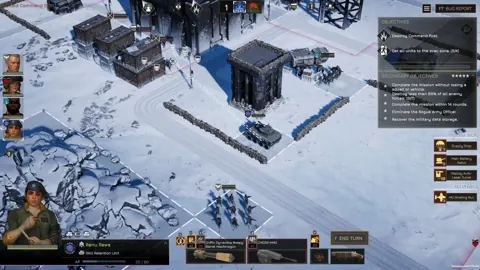 MENACE Steam Guide: Updates, Specs, and Buying AdviceExplore MENACE Steam features, PC requirements, combat tips, and the latest updates. Get ready for Early Access with practical advice before you deploy.
More in Platforms
MENACE PS5: PC Release Dates, Updates, and Roadmap
Looking for MENACE PS5 news? Get the PC Early Access release date, current update details, and development roadmap before planning your tactical campaign.
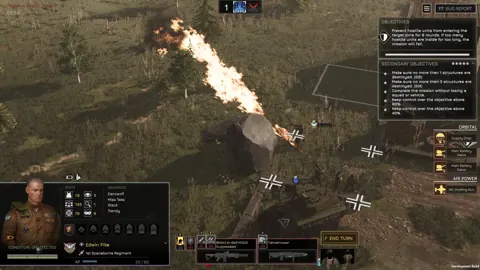
MENACE Xbox Guide: PC Release, Price, and Game Preview
Searching for MENACE Xbox details? Get the PC Game Preview release date, $39.99 price, supported features, and practical tips before you buy this game.
Join the community
Official channels for news, updates and player help: